MBFilmDB - User's Guide
Version 0.2.2.30Navigation
Requirements
- Python 3.10 + (or compiled .exe)
- Windows 10 / 11, Linux or macOS
- Min. 100 MB free disk space
- Internet connection (optional, for metadata download)
Installation procedure (source code)
1
Klonak Repository
git clone https://github.com/dedababimiskolezy-hub/MFilmDB.git
2
Create virtual environment
python -m venv venv or conda create -n mfdb python=3.10
3
Install Addiction
pip install -r requirements.txt
4
Start the application
python MfilmDB.py
💡
Tip: To create a separate .exe file, use the script
build_exe_gui.py or build_exe.py.
The following items are added:
This section describes additional utility and graphic tools in the directory APP_DATA/. They are designed for more advanced modifications, mass processing and creation of support data for application.
APP_DATA/extract_film_metadata.py
Mass extractor of technical metadata from files (length, resolution, codec, bitrate). Uses ffprobe / ffmpeg if available in PATH.
- Start:
python APP_DATA/extract_film_metadata.py <cesta_ke_složce>or without an argument for configuration control. - Output: CSV or direct database update (depending on script parameters).
- If you don't have
ffmpeg, script will try to use available Python libraries, but the results will be limited.
APP_DATA/ISP_Generator_GUI.py
GUI tool for creating thumbnails / sprite- sheets and smaller previews of images used in HTML exports.
- Start:
python APP_DATA/ISP_Generator_GUI.py - Options: insert the source folder with video, select the number of images per video, preview size and output format.
- Save output to the export folder (e.g.
html_export/or the actual path set in the export template).
APP_DATA/localize_data.py
It contains a list of supported languages and localization chains. For adding or editing a language:
- Open up.
APP_DATA/localize_data.pyand add a new entry in the listLANGUAGES(code + name). - Add translations to the relevant data structure, or to the localization file.
- Restart the application to make changes.
APP_DATA/logic.py - parser file names
Includes functions for the extraction of metadata from the filename, primarily parse_filename_metadata(). You can edit or add new patterns (regex) here to better recognize your own names.
An example of Python application:
from APP_DATA.logic import parse_filename_metadata
meta = parse_filename_metadata('Moje.Filmovka.2024.1080p.BluRay.mkv')
print(meta)
APP_DATA/ThemeAdder_GUI.py and APP_DATA/themes.py
Theme editor - created themes are saved into project configuration and are then available in Settings → Select theme.
- Start:
python APP_DATA/ThemeAdder_GUI.py - It allows you to create a color scheme (background, text, accent) and save it under a user name.
- The saved topics are found in
APP_DATA/themes.pyor in user configuration (depending on implementation).
How to add your own provider (e.g. specialized scraper)
If you want to add a new metadata source, proceed with caution:
- Create a new module in
APP_DATA, e.g.APP_DATA/enrich_myprovider.py, and implement the type functionenrich_film_myprovider(title, year, file_path)which returns a dictionary with fields corresponding to database columns. - Register a new resource in
MfilmDB.pyin configurationDEFAULT_CONFIG['sources'](add the default True / False key) and in the list of descriptions in metadata sources dialog. - Add a call to the enrichment orchestrator or adjust the order of providers according to the priority (see Enrichment section).
- Test locally on several samples - web scraping can be sensitive to changes in the structure of the target site.
General remarks on instruments
- Most tools are executed by command
python APP_DATA/<script>.pyfrom the root component of the project. - GUI utilities just have installed
tkinterand the required libraries listed inrequirements.txt. - Do not make changes in main modules without backup - we recommend working with a copy.
Sample outputs
The following are examples of typical tool outputs - they serve as references for validation of results.
1) Example CSV output from extract_film_metadata.py
file_path,duration,video_codec,width,height,bitrate
/media/Film/Example.Movie.2024.mkv,01:42:15,h264,1920,1080,3500k
/media/Film/Clip.Video.2023.mp4,00:03:45,h264,1280,720,800k
2) Example JSON result from parse_filename_metadata()
{
  "title": "Moje Filmovka",
  "year": 2024,
  "quality": "1080p",
  "source": "BluRay",
  "language": "CZ",
  "extra": {"resolution": "1920x1080"}
}
3) Example CSV for HTML export (sample row)
id;title;original_title;year;duration;rating;cover_path
1;Moje Filmovka;My Movie;2024;102;8.5;covers/moje_filmovka_2024.jpg
Screenshots (placeholders)
You can insert real screenshots into the manual. Below are placeholders that you can replace with real images in the folder navod_cz/images/ (next to file navod_cz.html).
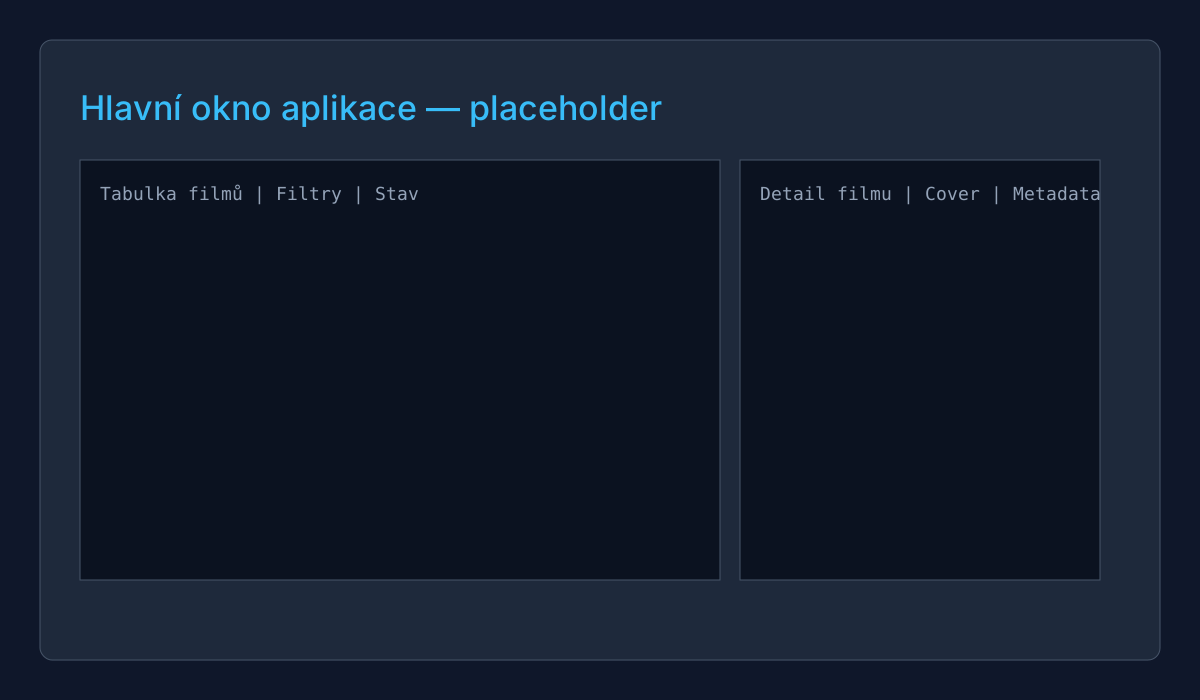
navod_cz/images/main_window.png).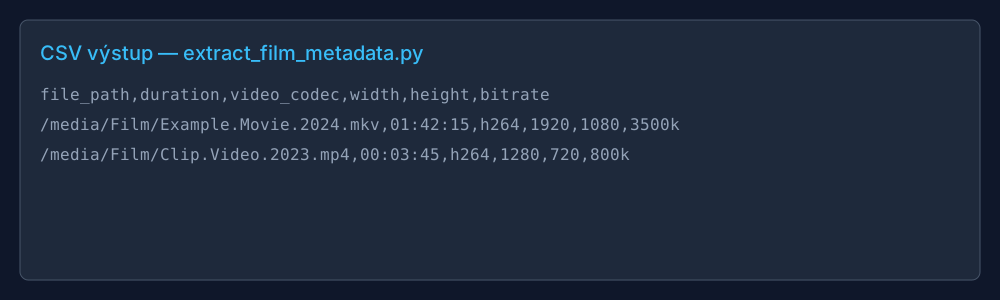
extract_film_metadata.py (Replace: navod_cz/images/extract_metadata.png).How to insert real screenshot:
- Save image to
docs/navod_cz/images/(create folder if not available). - Rename the file by caption (e.g.
main_window.pngormain_window.svg). - Open this file
docs/navod_cz.htmland changesrcin tag<img>to a new path (e.g.navod_cz/images/main_window.png).
Detailed texts and tips
Practical tips for export work
- When exporting HTML + ZIP, make sure that all external routes (overtime) are relative to the output archive.
- CSV export uses semicolon (;) as a separator by default for the Czech environment - if you import to Excel, select the correct coding (UTF-8) and separator.
- At the dose update DB using CSV, test first on a small set to prevent unwanted mass changes.
Screenshots Tips
- Take pictures in native application resolution, cut only excess edges and save as PNG for sharp text.
- Add a short label and arrows / boxes highlighting important buttons (you can use tools such as Greenshot or ShareX).
→ First start
When the application is first started, it creates:
config.json- configuration filemfilmdb.db- SQLite database of moviescovers/- folder for downloaded posters
Main window layout
| Zone | Location | Function |
|---|---|---|
| ITEM | Upper bar | File, Modifications, Tools, Settings |
| The tool panel | Under the menu | Search, filters, fast action |
| The Table of Films | Center | List of all films in the database |
| The detailed section | Right side | Preview of selected film, cover |
| SECTION II | Bottom bar | Number of films, status of operations |
‡ Basic settings
Access to settings
Menu: Settings → Different items
Selection of the topic of appearance
Settings → Select theme
- ttkbootstrap motifs - 20 + professional topics
- Own topics - user created
Language Change
Setting → Localization / Language
- © Czech
- ITEM English
Metadata resources
Setting → Metadata Sources...
Here you can turn on / off individual sources:
- TMDb, OMDb, CSDD, FDb, Edison Online, Netflix, Google Images
INDIVIDUAL INSTRUMENTS
Method of addition
📂
Scanning Folder
Automatic addition of all films from the folder
➕
Manual addition
Add one film with manual filling
📁
Drag & Drop
Drag files / folders to a window
Manual addition of film
1
Open dialog
Menu: Modifications → Add Film...
2
Fill in the data
Name, year, genre, path to file, path to cover...
3
Save
Click on the button Save
✨
Tip: For faster addition use the automatic folder scanning the enrichment of metadata from the internet.
SECTION 1
Access
Menu: Tools → Scanning Folder...
Scanning modes
| Scheme | Icon | Description | Speed |
|---|---|---|---|
| Quick Scan | ⚡ | Only basic info (path, size, format) | Very fast |
| Deep Scan | 🔍 | + Metadata extraction from file names and paths | Medium |
| Full Scan | 🌐 | + online enrichment (TMDb, CSDD, covers...) | Slow (depends on the internet) |
What is extracted from file name
- Film Name - first part of file name
- Year - number in brackets (2024) or after dot .2024.
- Quality - 1080p, 720p, 480p, 4K, UHD
- Source - BluRay, WEB- DL, HDTV, DVDRip, BRRip
- Dapping - CZ, SK, EN, dubbing, subtitles
⚠️
Attention: Full Scan can can take a long time with big collections. For 1000 + movies we recommend Quick Scan first and then gradual enrichment.
SECTION Editing of the alert
Editing methods
- Double-click to the row in the table
- Menu: Edit → Edit selected...
- Right click → Edit
Available fields
| Field | Description |
|---|---|
| title | Film title (Czech) |
| original _ title | Original title |
| year | Year of issue |
| genre | Genre (s) |
| Director | Director |
| writer | Scenario |
| cinematography | Camera |
| music | Music |
| cast | cast |
| dubbing | Dabing |
| subtitles | Subtitles |
| duration | Film length |
| file _ size | File size |
| file _ path | File Path |
| cover _ path | Path to cover |
| fence | Description of the action |
| Note | Remarks |
| rating | Evaluation |
| quality | Quality (1080p, 4K...) |
INCLUDING Film Lubrication
Delete one film
- Select the film in the table
- Menu: Edit → Delete selected
- Confirm dialog
⚠️
Warning: The lubrication is irreversible! The application only erases the log from the database,
file on disk remains.
• Metadata resources
The application supports downloading metadata from the following sources:
ITEM keys
Getting TMDb API key
- Register themoviedb.org
- Go to Settings → API
- Ask for API key (developer)
- Copy the key to the application: Setting → Metadata Sources
Getting OMDb API key
- Go to dmidbapi.com
- Select the Tier (Free = 1000 requirements / day)
- Confirm email and copy key
💡
Note: API keys are saved in
config.json. Do not publish this file (it contains your keys).
ITEM Enrichment
Enrichment is an automatic metadata supplement process from online sources.
Automatic enrichment
It runs at Full Scan or when using Watchdog with auto_import: true.
Manual enrichment
- Select the film (s) in the table
- Right click → Reset Metadata
- The application will download the current data from sources
Priority of resources
The order in which the data are combined (adjustable):
- TMDb (preferred source)
- OMDb / IMDb
- CSDD
- ♪ FDb.cz ♪
- Other
Data import
Import from older versions
Menu: File → Import from older versions...
Supported formats:
- CSV export from older versions of MFilmDB
- JSON Export
- HTML export (limited support)
Standard import
Menu: File → Import...
Import from current formats (CSV, JSON) exported by this version.
Data Export
Access
Menu: File → Export...
Available formats
| Format | File | Application |
|---|---|---|
| CSV | .csv | Table Processors (Excel, LibreOffice) |
| JSON | - Yeah. | Programming, advance payment |
| Excel | .xlsx | Microsoft Excel with embedded preview |
| HTML | .html | Web page for browsing |
| XML | .xml | Structured integration data |
| ZIP | .zip | HTML + all covers in archive |
HTML Export Templates
When exporting to HTML, you can choose from several templates:
--Watchdog - automatic tracking
What's a Watchdog?
Watchdog is a function that automatically monitors selected folders and when Add a new video file automatically imports it into the database.
Settings
Menu: Tools → Watchdog Settings...
Configuration
- Enabeld - on / off watchdog
- Folders - list of monitored ingredients
- Auto import - automatic addition to DB
- Check interval - control interval (seconds)
- File types - the monitored extension (.mp4, .mkv, .avi...)
💡
Tip: Watchdog is ideal for viewing download folder or NAS, where new movies are automatically added.
SECTION 4
Change of topic
Menu: Settings → Select theme
ttkbootstrap topics
Dark: Darkly, Superhero, Cyborg, Warp, Solar
Light: flatly, letter, mint, lumen, sandstone, yeti
Other: cosmo, journal, pulse, morph...
Own topics
You can create your own color scheme:
- Setting → Select theme → Own themes
- › Create a new theme...
- Define colors (bg, fg, accent, header, table...)
- Save theme
⚠️
Note: After changing the subject it is recommended to restart the application for full application of changes.
† Search and filter
Quick Search
Field in the toolbar - searches the name, original name, year, director.
Advanced Search
Menu: Tools → Advanced search...
- Year filter (range)
- Filter by genre
- Filter by quality
- Multiple Criteria
Multi-level sorting
Menu: Tools → Multi-level sorting...
- Primary: e. g. Year (descending)
- Secondary: e. g. Name (ascending)
- Tertiary: e. g. Evaluation (descending)
SECTION Keyboard abbreviations
| Shortcut | Event |
|---|---|
| Ctrl + N | New Film |
| Ctrl + O | Import |
| Ctrl + S | Export |
| Ctrl + F | Search |
| Enter | Edit selected |
| Delete | Delete selected |
| F5 | Reset Display |
• Frequently Asked Questions (FAQ)
Where's the database stored?
In the same folder as the application, file mfilmdb.db (SQLite).
Can I use the offline app?
Yes, the basic functions are offline. The Internet is needed for the enrichment metadata.
How to back up the database?
Copy Files mfilmdb.db and config.json. If applicable, folder covers/.
Does he support the application of the series?
Partly - you can add episodes as separate entries. Full support of the series is planned.
How to add a new metadata source?
Requires source code modification - addition of function enrich_film_* and registration in configuration.
* Problem solving
The application will not start
- Verify Python version:
python --version(requires 3.10 +) - Install dependencies:
pip install -r requirements.txt - Try to delete
config.json(new)
The metadata are not downloading
- Verify Internet connection
- Check API keys in settings
- Some resources may be temporarily unavailable
The Covers are not displayed
- Check the path to the cover in the film detail
- Verify that the cover file exists
- Supported formats: JPG, PNG, WebP
♪ Watchdog's not working ♪
- Verify that the watchdog is on in the settings
- Check the permissions to the monitored folders
- Restart the application after changing settings
🐛
Error reporting: Use to report errors
GitHub Issues.
• Detailed user manual
Quick start
- Start 'python MfilmDB.py' or use the compiled .exe '.
- In the menu Setting → Watchdog set the folders to track and press Save.
- V Default Check the API keys for TMDb / OMDb / CSDD if you want online enrichment.
- Import files: drag them into the application window or use Import → Scanning Folder.
Main Screen
The film table shows basic metadata (subtitle, year, length, source, dubbing). Click on the line to open the detail where you can modify metadata, replace the cover or run enrichment.
Import and export
The application supports: CSV, XLSX (with pictures), JSON, HTML gallery and AIO ZIP exports. In export templates you will find settings of columns and formats in Setting → Export.
Enrichment metadata
Enrichment combines results from multiple providers (TMDb, OMDb, CSDD, FDb). Selection of providers and priorities can be found in Setting → Enrichment. Function Enrich Smart automatically merge the best available data.
Note: For video clips and music videos you can allow a specialized provider IMVDB in source settings (default off). To add your own provider, add implementation to APP_DATA and set it in the configuration file.
Watchdog (automatic folder tracking)
Watchdog monitors added folders for new files. When you detect a new file, it will start parsing the name, create a record and download the cover / thumbnail if enabled.
Covers management
SimpleCoverDownloader downloads images in several sizes. In the details of the film you can copy the cover to the clipboard, download the alternative cover or use offline fallback.
Advanced Settings
- Themes - create and apply your own theme in the theme editor.
- Keyboard abbreviations - see the Keyboard Shortcuts section for quick actions (addition, search, export).
- Logs - logs are in the 'logs /' directory and contain detailed information about the application running.
Solving frequent problems
If the application does not display covers or metadata, check the API key settings, the availability of 'ffmpeg' / 'ffprobe' in PATH and the folder permissions.